Do you need to eliminate unwanted pages from your PDF files quickly and programmatically? This guide shows you how to remove specific pages from a PDF using Java. We’ll cover both the Conholdate Total Java library for developers and a completely free online PDF page remover for occasional use. Follow the steps below to integrate page‑deletion into your Java applications, and stay until the end for a bonus section that reveals a no‑cost web tool.
The following points will be covered in this article:
- Installing Java PDF Page Remover Library
- Discover How to Remove Pages from PDF in Java
- Online PDF Page Remover
Java PDF Page Remover Library - Installation
A reliable Java library simplifies PDF manipulation. We’ll use the powerful Java PDF page remover library from Conholdate Total. Add the repository and dependency to your pom.xml and Maven will handle the rest.
<repository>
	<id>ConholdateJavaAPI</id>
	<name>Conholdate Java API</name>
	<url>https://releases.conholdate.com/java/repo</url>
</repository>
<dependency>
	<groupId>com.conholdate</groupId>
	<artifactId>conholdate-total</artifactId>
	<version>23.6</version>
	<type>pom</type>
</dependency>
After updating the pom, execute:
mvn clean
mvn install -U
For other Java frameworks or detailed configuration, visit the official releases page at releases.conholdate.com.
How to Remove a Page from a PDF in Java
The Conholdate Total library lets you delete any page from a PDF with just a few lines of code. Below is a concise walkthrough, complete with code snippets.
Steps to Remove Pages from PDF
Follow these four steps to delete a specific page:
- Open the PDF – Create a
Documentobject that points to your source file:
Document pdfDocument = new Document(_dataDir + "sample.pdf");
- Delete the target page – Use the
delete()method of thePagescollection. Page numbers start at 1:
pdfDocument.getPages().delete(2);
This example removes the second page.
- Define the output path – Set the destination file name and folder:
_dataDir = _dataDir + "DeleteParticularPage_out.pdf";
- Save the modified PDF – Persist the changes with
save():
pdfDocument.save(_dataDir);
Source Code
The full example combines all steps into a single class:
import com.aspose.pdf.*;

public class ExampleDeletePage {

  private static String _dataDir = "/home/admin1/pdf-examples/Samples/";

  public static void DeletePageFromPDFFile() {

    // Open the document
    Document pdfDocument = new Document(_dataDir + "sample.pdf");

    // Delete a particular page
    pdfDocument.getPages().delete(2);

    _dataDir = _dataDir + "DeleteParticularPage_out.pdf";
    // Save updated PDF
    pdfDocument.save(_dataDir);

  }
Get a Free License
Download a free temporary license to evaluate the library without any functional restrictions.
Ask a Question
Need help or want to share feedback? Post your questions in the official forum.
PDF Page Remover - Free & Online (Bonus)
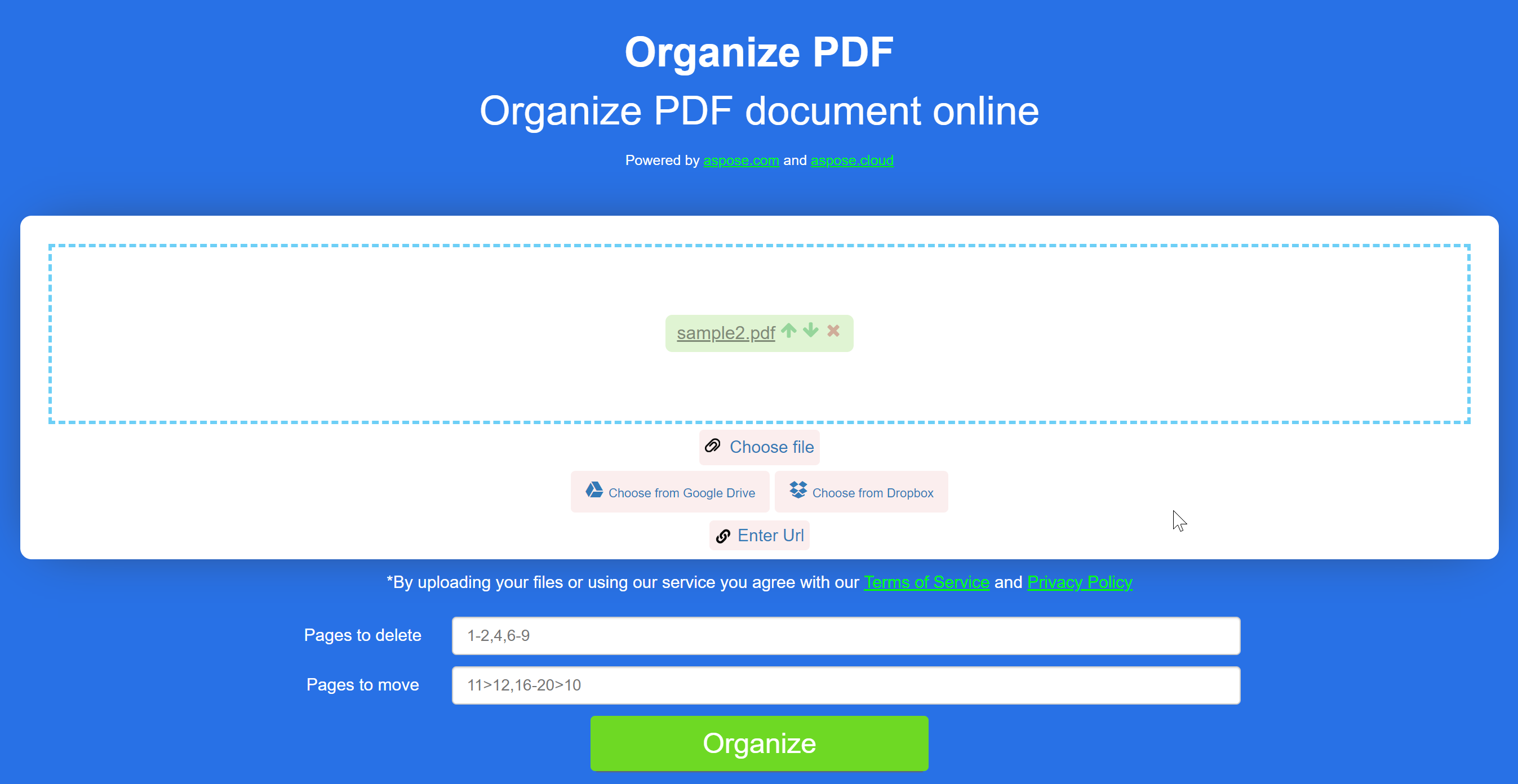
If you prefer not to write code, our free online PDF page remover does the job in seconds. Upload a file, select the pages to discard, and download the cleaned PDF.
Steps to Use Online PDF Page Remover
- Add a file: Drag‑and‑drop your PDF or click the upload area to select it from your computer.
- Specify pages: Enter the page numbers you want to delete (e.g.,
2,4-5). - Click ‘ORGANIZE’: The tool processes your request and removes the selected pages.
- Download the result: Save the optimized PDF to your device.
These simple steps let you clean up PDFs without installing any software.
Conclusion
Eliminate unnecessary pages from PDFs effortlessly with the Java PDF Page Remover library or the free online organizer. Both options save time, reduce file size, and give you a polished, professional document. Start using the library in your Java projects today, and keep the online tool handy for quick, on‑the‑fly edits.
For the latest updates and additional resources, visit conholdate.com regularly.